CFTS Documentation
CFTS Simple File Share User Guide
Index
- What This System Is For
- Accessing The Service
- Quick Upload Overview
- Quick Upload Layout
- Uploading One File
- Uploading Multiple Files
- Public Links
- Email-Locked Links
- Friendly Link Aliases
- Link Duration
- File Type Rules
- Reset Button
- After Uploading
- Recipient Experience
- Large-File Delivery
- Good Practice
- Troubleshooting
- Quick Reference
- Important Reminder
1. What This System Is For
CFTS Simple File Share is for creating controlled file-sharing links without using email attachments.
Use it when you need to:
- send a client one file
- send a client several files as one link
- create a temporary or permanent download link
- restrict a download link to a receiving email address
- avoid sending large files through email
The quick-upload panel is intended for fast internal use.
2. Accessing The Service
Open:
https://file.cfts.co/
The Internal quick upload panel is only visible from approved internal network addresses.
If the quick-upload panel is not visible, you are probably not on an approved CFTS network or approved access path.
3. Quick Upload Overview
The quick-upload panel lets you create one share link.
You can upload:
- one file
- multiple files
If you upload one file, the system creates a link to that file.
If you upload more than one file, the system automatically packages the selected files into one ZIP file and creates one link to that ZIP.
4. Quick Upload Layout
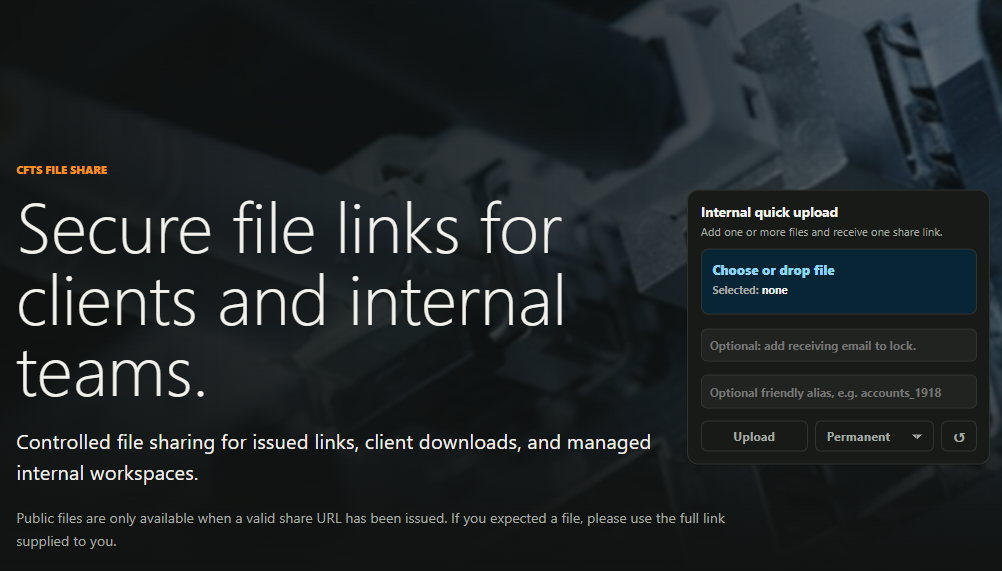
The quick-upload panel contains:
Choose or drop file
Optional email field
Optional friendly alias field
Upload button
Duration dropdown
Reset icon
The final action row is:
[ Upload ] [ Permanent / duration ] [ reset icon ]
The reset icon clears the selected file and form fields only. It does not delete uploaded files or revoke existing links.
5. Uploading One File
- Open
https://file.cfts.co/. - In Internal quick upload, click Choose or drop file.
- Select one file.
- Leave the email field blank if the link should be public.
- Optionally enter a friendly alias, such as
accounts_1918. - Choose the link duration:
- Permanent
- 1 day
- 7 days
- 30 days
- 90 days
- Click Upload.
- For selected data over 500 MB, an activity overlay appears. Keep the page open until the upload finishes.
- Copy the generated share link.
- Send the link to the intended recipient.
6. Uploading Multiple Files
- Open
https://file.cfts.co/. - Click Choose or drop file, or drag files onto the drop box.
- Select or drop more than one file.
- The selected file display will show the number of files.
- Leave the email field blank for a public link, or enter an email address to lock the link.
- Optionally enter a friendly alias.
- Choose the link duration.
- Click Upload.
- If the combined selected size is over 500 MB, keep the page open while the large-upload activity overlay is visible.
- The system creates one ZIP file automatically.
- Copy the generated share link.
The recipient will download one ZIP file.
Example generated ZIP name:
quick-upload-YYYYMMDD-HHMMSS.zip
7. Public Links
If the email field is left blank, the system creates a normal public share link.
Anyone with the link can access the download until the link expires or is revoked by an administrator.
Use a public link when:
- the file is not sensitive
- the recipient may forward the link internally
- speed is more important than recipient verification
8. Email-Locked Links
If you enter an email address in the optional email field, the link is locked to that email address.
The field placeholder is:
Optional: add receiving email to lock.
When the recipient opens the link, they will see an email verification page.
They must request a verification code and enter it before downloading the file.
Use an email-locked link when:
- the file should only be accessed by a specific recipient
- the link may be forwarded accidentally
- the download should require recipient verification
9. Friendly Link Aliases
The optional friendly alias field creates a shorter, more recognisable share address.
For example, entering:
accounts_1918
creates:
https://file.cfts.co/accounts_1918
Leave the alias field blank to use the normal secure random-token link.
Alias restrictions
An alias:
- must contain between 3 and 64 characters
- may contain English letters, numbers, hyphens (
-), and underscores (_) only - must begin and end with a letter or number
- is stored in lowercase
- must be unique; uppercase and lowercase versions count as the same alias
- cannot use the reserved names
admin,health,quick-upload,s, orstatic - cannot currently be reused after its link expires or is revoked
Valid examples:
accounts_1918
client-files
project7
Invalid examples:
ab
_accounts
accounts_
accounts/1918
quick-upload
A friendly alias does not change the link's email lock, expiry, download limit, or revocation rules.
Important:
A friendly alias is easier to guess than a random-token link. Do not treat the alias itself as a password. Use email locking for sensitive files, and do not put confidential client information in an alias.
10. Link Duration
The duration dropdown controls how long the generated link remains valid.
Available options:
| Option | Meaning |
|---|---|
| Permanent | Link does not expire automatically |
| 1 day | Link expires after one day |
| 7 days | Link expires after seven days |
| 30 days | Link expires after thirty days |
| 90 days | Link expires after ninety days |
Use the shortest practical duration for client files.
11. File Type Rules
The system uses a default-deny upload policy.
Only approved file types may be uploaded directly.
Allowed examples include:
- documents
- spreadsheets
- presentations
- text files
- CSV files
- images
- compressed archives such as ZIP, 7z, RAR, TAR, GZ, TGZ
Blocked examples include direct executable or runnable files such as:
.exe- scripts
- native runnable files
If executable or script content must be shared, place it inside an approved archive before uploading, subject to company policy.
Important:
For multi-file uploads, each original selected file is checked before the system creates the ZIP.
This means a blocked file cannot bypass the rules by being included in a multi-file upload.
12. Reset Button
The reset icon clears the quick-upload form.
It resets:
- selected file display
- selected files
- email field
- friendly alias field
- duration selection, depending on browser behaviour
It does not:
- delete uploaded files
- revoke links
- alter existing share links
- remove downloads already created
Use it when you selected the wrong file or want to start again before uploading.
13. After Uploading
After a successful upload, the panel shows:
- uploaded filename, or generated ZIP filename
- generated share link
- Copy link button
- New file button
Click Copy link to copy the share link.
Click New file to reset the panel and create another upload.
14. Recipient Experience
Public link
The recipient opens the link and sees the download choices available for the file size.
Email-locked link
The recipient opens the link and sees an email verification page.
They must:
- Click Send verification code.
- Check the configured email inbox.
- Enter the verification code.
- Download the file.
15. Large-File Delivery
Files larger than the default 500 MB threshold show two options:
| Option | Best use |
|---|---|
| Normal download | Fastest delivery on a stable connection |
| BitTorrent | Resumable delivery on unstable or intermittent connections |
The BitTorrent option downloads one private .torrent file. Open it in a compatible client such as qBittorrent. It creates one task and one output file.
Expected qBittorrent behaviour:
- CFTS tracker shows Working.
- DHT, PeX, and local discovery show disabled because the torrent is private.
- HTTP Sources can show up to four CFTS entries.
- Zero other peers is valid; CFTS HTTP sources provide the initial data.
The first torrent request can take a little time while the server hashes the file. Keep the page open while the preparation activity indicator is visible.
Normal download is usually faster. BitTorrent is provided primarily for resilience and resumability.
Important:
Protect the downloaded
.torrentlike the original share link. It contains authenticated CFTS source addresses and should not be forwarded without approval.
Previously downloaded torrent files do not update automatically. Download a fresh .torrent after CFTS announces a delivery update.
16. Good Practice
Use these simple rules:
- Use email-lock for client-sensitive files.
- Use a friendly alias only when it adds useful context.
- Do not include confidential client information in a friendly alias.
- Use a time limit unless the link genuinely needs to be permanent.
- Use ZIP automatically by selecting multiple files rather than creating multiple separate links.
- Check the selected filename or file count before clicking Upload.
- Do not upload direct executables or scripts.
- Do not send links to unintended recipients.
- Use New file when creating another link.
- Keep the page open while a large-upload or torrent-preparation activity indicator is visible.
- Use Normal download for speed and BitTorrent when an unstable link needs resumability.
- Do not forward private
.torrentfiles without approval.
17. Troubleshooting
The friendly alias is rejected
Check that it is 3-64 characters long, uses only letters, numbers, hyphens, or underscores, and begins and ends with a letter or number.
The alias may already be in use or may be a reserved service name. Choose a different alias.
I cannot see the quick-upload panel
You may not be on an approved internal network.
Check that you are connected through the correct CFTS network path.
Upload says the file type is not allowed
The file extension is not on the approved upload allowlist.
Use an approved document, image, text, CSV, or compressed archive format.
I selected several files but only got one link
That is expected.
The system packages multiple files into one ZIP and returns one link.
The recipient sees an email verification page
That means the link was created with an email lock.
The recipient must request and enter the verification code.
I entered the wrong email address
Create a new link with the correct email address.
Do not reuse the old email-locked link.
I uploaded the wrong file
Create a new upload with the correct file.
Ask an administrator to revoke or archive the incorrect link if needed.
BitTorrent is slower than Normal download
This can be expected when there are no native peers. Check that the CFTS tracker is Working, the HTTP Sources list contains CFTS entries, and the client is not using alternative speed limits, a proxy, or a restricted interface.
DHT, PeX, or local discovery says disabled
That is expected. CFTS torrents are private and do not use uncontrolled public peer discovery.
The torrent still shows one HTTP source
Remove the old torrent task without deleting any file you need, then download a fresh .torrent. Current torrents can contain up to four authenticated CFTS HTTP sources.
The large upload appears to be doing nothing
Keep the page open while the activity overlay is visible. Slower connections can take several minutes. If the page reports an error, retry from an approved internal network.
18. Quick Reference
| Need | What to do |
|---|---|
| Send one file quickly | Select one file, leave email blank, upload |
| Send several files | Select/drop multiple files; system creates one ZIP |
| Lock to recipient | Enter recipient email before upload |
| Create a recognisable URL | Enter an optional alias such as accounts_1918 |
| Share sensitive content with an alias | Add the alias and lock the link to the recipient's email |
| Limit availability | Choose 1, 7, 30, or 90 days |
| Start over before upload | Press the reset icon |
| Make another link after upload | Press New file |
| Copy link | Press Copy link |
| Upload more than 500 MB | Keep the page open while the activity overlay is visible |
| Fastest large-file download | Choose Normal download |
| Resumable large-file download | Choose BitTorrent, then open the private torrent in qBittorrent |
| Torrent delivery was updated | Download a fresh .torrent |
19. Important Reminder
A share link is still a share link.
Only create links for files that are appropriate to share, and send links only to intended recipients.
When in doubt, use an email-locked link and a shorter expiry period.